
Most customers who would happily leave a Google review never do, for a simple reason: nobody asked them, or the request arrived without a link, at the wrong time or buried in a long email. The fix is not a cleverer message. It is a plain request, sent to every customer, at the right moment, with a link that works.
The trouble is that many of the templates and tools in circulation do the opposite. They ask “How was your visit?” first and send only the happy customers to Google. They offer a discount for a review. They push a burst of requests after a slow month. All three can break Google’s rules, and Google can respond by removing reviews, blocking new ones and showing customers a warning on your profile (Google Business Profile Help, checked November 20, 2026).
This guide covers the whole job:
the rules, the link, copy-ready templates, a workflow you set up once, and a
troubleshooting table for when reviews go missing.
Why Google reviews matter for a local business
Google’s own guidance on local ranking says that review count and review score factor into local search ranking, and that more reviews and positive ratings can improve a business’s local ranking (Google Business Profile Help, “Tips to improve your local ranking on Google,” checked November 20, 2026). Relevance, distance and prominence are the three factors Google names, and reviews feed prominence. Mianro's Elevate covers local SEO and Google Business Profile signals if you want help beyond reviews.
Reviews also do work that has nothing to do with ranking. A customer comparing two plumbers on Google Maps reads the most recent reviews, notices how the owner replies, and looks at whether the reviews are recent or two years old. A steady flow of honest reviews answers all three questions at once. Reviews on your own Google profile also stay yours, unlike reviews on lead platforms, as we explain in our comparison of Angi, Thumbtack and your own website.
That is why the goal of this
guide is not a spike. It is a steady stream of genuine reviews from every kind
of customer, which is also exactly what Google’s policies are designed to
protect.
Key terms and entities
These are the names and terms this guide uses. Each is defined once here so the rest of the guide can stay short.
|
Term |
What it means |
|
Google Business Profile |
Your free business listing on Google Search and Google Maps, managed at business.google.com. Reviews attach to this profile. |
|
Google review |
A star rating (1–5) and optional text a customer posts on your Business Profile. Posting one requires a Google account. |
|
Review link |
A URL that opens your profile’s review form directly. You can copy a short one from your Business Profile or build one from your Place ID. |
|
Place ID |
A unique identifier Google Maps gives each place. It is used to build a direct review link. |
|
QR code |
A scannable code that opens your review link on a phone, printed on cards, receipts or invoices. |
|
Review gating |
Checking a customer’s satisfaction first and sending only happy customers to Google. Google’s policy prohibits selectively soliciting positive reviews. |
|
Incentivized review |
A review given in exchange for payment, a discount, a gift or another benefit. Google prohibits incentives for any review. |
|
Fake engagement |
Google’s policy category for reviews that don’t reflect a genuine experience, including incentivized, gated and manipulated reviews. |
|
Review filtering |
Google’s automated systems holding back or removing reviews that look suspicious, such as those posted in an unusual burst. |
|
FTC Consumer Reviews Rule |
The Federal Trade Commission’s Trade Regulation Rule on the Use of Consumer Reviews and Testimonials (16 CFR Part 465), in effect since October 21, 2024. |
|
TCPA |
The Telephone Consumer Protection Act, the US federal law that governs consent for many calls and text messages. |
|
A2P 10DLC |
The US carrier registration system for business (application-to-person) texting from standard 10-digit phone numbers. Unregistered traffic may be filtered or blocked. |
|
SPF, DKIM, DMARC |
Email authentication records on your domain that help inbox providers trust your messages instead of sending them to spam. |
|
CRM |
Customer relationship management software, where a completed job can trigger the review request automatically. |
What Google and the FTC allow
Read this before you copy any
template, including ours. Some of the most common review request tactics are
against Google’s policy.
Google’s rules for asking
• Asking is allowed. Google’s help page for businesses says you can ask customers for reviews, including by sharing a link or QR code.
• Incentives are prohibited. Google’s Prohibited & restricted content policy says businesses must not “offer incentives – such as payment, discounts, free goods and/or services – in exchange for posting any review.” “Any review” includes honest ones.
• Gating is prohibited. The same policy says businesses must not “discourage or prohibit negative reviews, or selectively solicit positive reviews from customers.”
• No pressure on site, no scripted content. Google’s updated policy, reported by Search Engine Roundtable on February 20, 2026, says businesses “should not require or pressure users to leave ratings or write reviews while on the premises” and should not “request that specific content be included.”
• Patterns are watched. The same update added language on “unusual volumes or patterns of review contributions that are indicative of efforts to manipulate a place’s rating.” A sudden burst of requests can look like one.
What Google can do about violations
For fake engagement, Google says it may remove the violating reviews and also restrict the Business Profile. Restrictions can include blocking new reviews for a period, unpublishing existing reviews and showing customers a warning that fake reviews were removed. Google says the owner gets an email before a restriction is applied and can appeal (Google, “Business Profile restrictions for policy violations,” checked November 20, 2026).
The FTC rule
The FTC’s Consumer Reviews and Testimonials Rule took effect October 21, 2024. Among other things, it bans buying reviews, offering incentives conditioned on a review expressing a particular sentiment, undisclosed reviews by insiders such as employees, and suppressing negative reviews through groundless legal threats or intimidation (Federal Register, August 22, 2024). The FTC can seek civil penalties for violations.
Google is stricter than the FTC. The FTC targets incentives tied to a positive or negative review. Google bans incentives for any review. So “$10 off your next visit for an honest review” may not be a sentiment-conditioned incentive under the FTC rule, but it still breaks Google’s policy, and Google is the one that controls your profile.
Safe and not safe, at a glance
|
Safe |
Not safe |
|
Send the same request to every customer |
Ask “how was it?” and send only happy customers to Google |
|
Share one direct link or QR code |
Offer a discount, gift, raffle entry or donation for a review |
|
Ask for an “honest review” |
Ask for “5 stars” or tell customers what to mention |
|
Hand a QR card at checkout |
Set up a tablet or kiosk in the shop, or watch customers write the review |
|
Send one reminder, then stop |
Send repeated reminders, or a burst after a one-off push |
|
Reply to every review |
Ask a customer to remove a negative review in exchange for anything |
Two pieces of common advice, “don’t ask for a star rating” and “don’t ask customers to name a staff member,” were not in the February 2026 policy report. They are still good practice, because both edge toward requesting specific content, but treat them as guidance rather than a quoted rule.
Regulated industries: law firms, healthcare providers and some other professions have their own rules on soliciting reviews and on client or patient confidentiality. Check yours before you automate anything. This section is general information, not legal advice.
How to get your Google review link and test it
A review request without a working link mostly fails. Here are the two reliable ways to get one.
Option 1: Copy the short link from your Business Profile
1. Sign in to the Google account that manages your Business Profile.
2. Search for your business name on Google or open your profile in Google Maps.
3. Choose the option to ask for reviews (labeled “Ask for reviews” or “Get more reviews,” depending on the view). [Confirm current label and add a dated screenshot.]
4. Copy the short link it gives you. Google also offers a QR code from the same screen in some views.
Option 2: Build a direct link from your Place ID
1. Open Google’s Place ID Finder (part of Google Maps Platform documentation) and search for your business.
2. Copy the Place ID it shows.
3. Add it to this address: https://search.google.com/local/writereview?placeid=YOUR_PLACE_ID
4. The link opens your profile with the review box ready.
Test before you send
☐ Open the link in a private or incognito browser window. It should show your business, not a similar one.
☐ Open it on a phone, both with and without the Google app installed.
☐ Check it signed in and signed out. Signed-out visitors will be asked to sign in, which is normal.
☐ If you have more than one location, test each location’s link separately.
If the link stops working: a merged or duplicate listing, a move to a new profile or a suspended profile can break it. Copy a fresh link and update every template, QR code and automation.
[Expert Tip] Store the link in one place, such as a custom value or field in your CRM, and have every template read it from there. When the link changes, you update it once.
Copy-ready review request templates
Every template here follows one rule: the same request goes to every customer. Replace the bracketed fields, keep the wording neutral, and don’t add an offer.
Review request email template
Subject line options (pick one and keep it for every customer):
• Thanks from [Business]
• A quick favor from [Business]
• [First name], thank you for choosing [Business]
Hi [First name],
Thanks for choosing [Business] for your [service] on [date]. If you have a minute, we’d appreciate an honest review on Google. It helps other people in [city] decide, and it tells us what to keep doing and what to fix.
[Leave a Google review →]
If anything wasn’t right, just reply to this email or call [Name] at [phone]. We’ll sort it out.
Thank you,
[Name]
[Business]
· [Phone] · [Address]
Text message template
Hi [First name], thanks for choosing [Business] today. Would you share your honest experience on Google? [link] Reply STOP to opt out.
Keep texts short (around 160 characters where you can), name your business, use one link and include an opt-out.
In-person ask (at checkout or job completion)
“Thanks again. We’re building up our Google reviews, so if you’d like to share your honest experience later, the link is on this card.”
Hand over the card and move on. Don’t ask them to do it in front of you and don’t hand them a device.
QR card or receipt line
Thanks for choosing [Business]. Tell others about your experience: scan to review us on Google. [QR code]
One reminder
Hi [First name], a quick reminder in case our last note got buried. If you’d like to share your honest experience with [Business], here’s the link: [link]. Either way, thank you for choosing us.
Send it once, a few days after the first request (3–5 days is a common choice, not a rule), and only if they haven’t reviewed, replied or opted out.
Variations by industry
|
Business |
When to ask |
What to change |
|
Same day, once the job is complete and paid |
Name the job: “your water heater installation.” Text works well for on-site jobs |
|
|
Dental or medical practice |
After the visit, through the practice’s approved channel |
Keep it generic. No diagnosis, treatment or appointment details. Check patient-privacy rules before automating |
|
Law firm |
After the matter closes |
Check your state bar’s rules on soliciting reviews and client confidentiality first. Never reference the case |
|
Restaurant, café or salon |
Same day or the next morning |
Short and friendly. A QR code on the receipt or table card fits well |
[Expert Tip] Don’t put private details in a review request. A short, generic thank-you is safer, especially for medical and legal businesses, and it works just as well.
Seven common mistakes
1. Asking only happy customers. It is gating, and Google prohibits it.
2. Offering a reward. Discounts, gifts and raffle entries break Google’s policy, even for “honest” reviews.
3. No link, or a broken one. Customers won’t search for your profile. Test the link before every campaign.
4. Asking weeks later. For a local service, the experience fades fast. Ask the same day or the next. Our guide to AI lead generation for plumbers shows where a review request fits in a plumber's follow-up routine.
5. Reminding again and again. One reminder is helpful. Three is pressure, and it trains customers to ignore you.
6. Sending a burst. Forty requests in a day after a quiet month can trigger filtering. Spread them out.
7. Using a shop tablet. On-premises pressure is against Google’s policy, and shared devices and Wi-Fi are linked to filtered reviews.
The review request workflow: set it up once
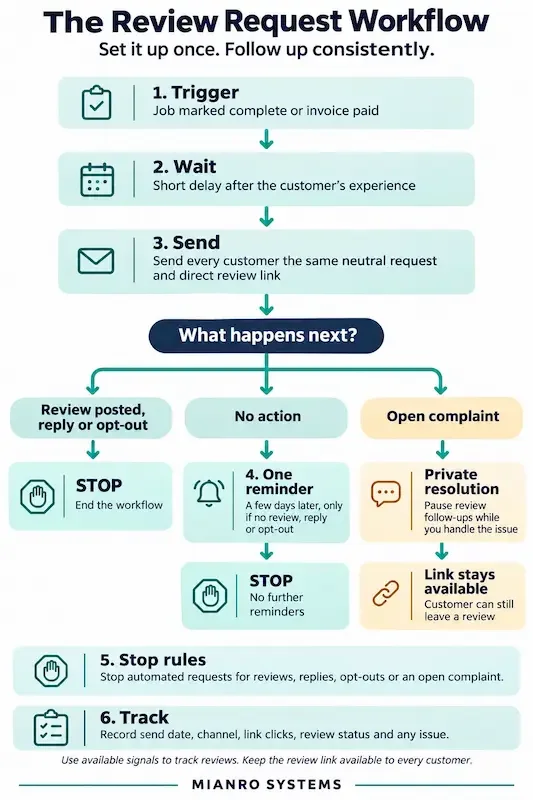
Templates fail when someone has to remember to send them. A workflow sends the right message after every job without anyone thinking about it. It has six parts.
1. Trigger. A job is marked complete (or an invoice is paid) in your CRM, booking or job software. That event starts the workflow.
2. Wait. A short delay so the request arrives soon after the experience, not during it.
3. Send. The same neutral template to every customer, with your direct review link.
4. One reminder. A few days later, only if the customer hasn’t reviewed, replied or opted out.
5. Stop rules. The workflow ends when the customer reviews, replies, opts out, or has an open complaint you’re handling. A customer with a complaint still keeps the link they already received.
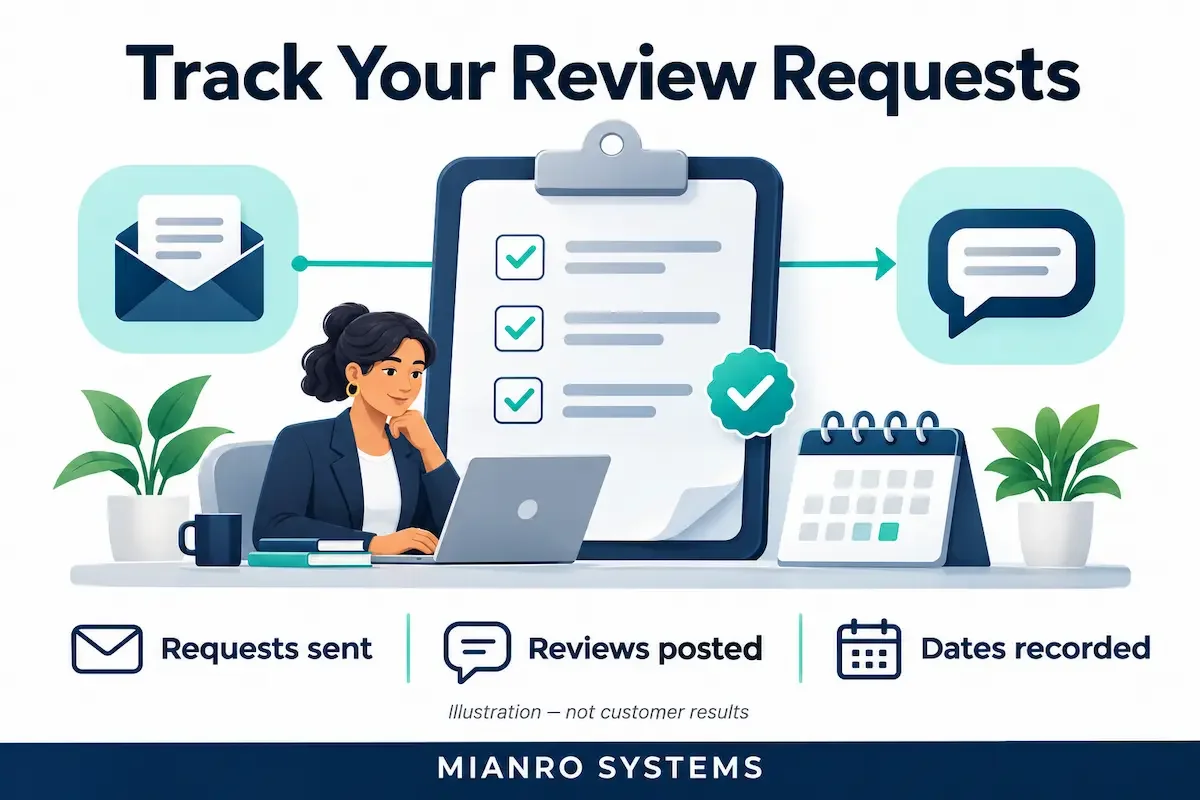
6. Track. Record the date sent, channel, whether the link was clicked, whether a review was posted and any issue.
Spread requests evenly
If you have a backlog of past customers, don’t email them all on Monday. Send to a small batch each week, starting with your most recent customers. Steady requests produce steady reviews, which is what Google’s pattern checks expect from a real business.
If you use GoHighLevel
[Include only with a real, tested workflow and screenshots.] A typical build: a trigger on an opportunity stage or a “job complete” tag; a wait step; SMS and email actions that pull the review link from a custom value; an “if/else” on reply or opt-out to stop the sequence; one reminder; and a tag or field update when the customer reviews. Test it with your own contact before turning it on for customers.
[Expert Tip] Test the whole workflow as a customer before you go live: complete a test job, receive the text and email, click the link, reply STOP, and confirm the reminder doesn’t send.
Email or text, and when to send
Text is usually seen faster. In Birdeye’s 2025 data from its own platform, SMS review requests had a 38% response rate against 27% for email. That is vendor data, and “response” may not mean a posted review, so treat it as a direction rather than a promise.
Email gives you room for a proper thank-you and a line for problems, and it works when you don’t have consent to text.
Both often work best: one channel for the request, the other for the single reminder. Mianro's Nova supports SMS and email sequences, which fits this setup.
|
Situation |
Request |
Reminder |
|
On-site service, customer has a mobile number and agreed to texts |
Text the same day |
Email after a few days |
|
Office visit or appointment |
Email the same day or next day |
Text after a few days, if consented |
|
No texting consent |
|
|
|
Walk-in or retail |
QR card at checkout |
None, unless you have contact details and consent |
Timing advice for online stores (for example, waiting 10–14 days for a product to arrive) doesn’t apply to local services. For a service, the best moment is soon after the job, while the experience is fresh.
[Expert Tip] Your own numbers beat any industry figure. Run each channel for a month and compare reviews posted per request sent.
Consent and sending rules
• Texts. Have permission to text the customer, identify your business and include an opt-out. In the US, register your business texting number for A2P 10DLC through your texting provider, or carriers may filter your messages. The TCPA and carrier rules govern consent; whether a review request counts as a marketing message affects what consent you need, so confirm with your provider and counsel.
• Email. Send from your own domain with SPF and DKIM set up, and DMARC where possible. Google and Yahoo’s sender requirements (2024) push all senders toward authentication and require more of high-volume senders. Identify your business and give a way to opt out.
• Sensitive information. Keep health, legal and payment details out of review requests entirely.
This is general information, not legal advice.
Unhappy customers and review replies
Problems are going to happen. The rule is simple: handle the problem privately, in parallel, and never instead of the review request.
• Do give every customer a direct way to reach you (reply, phone or email) alongside the review link, as the email template does.
• Don’t swap the Google link for a private feedback form when someone seems unhappy. That is gating.
• Don’t offer anything to get a negative review changed or removed.
• After you fix it, you can tell the customer it’s resolved. Whether they update their review is their choice.
Reply templates
Positive: Thanks, [First name]. We’re glad the [service] went well, and we appreciate you taking the time. — [Name], [Business]
Negative: [First name], I’m sorry this wasn’t the experience you expected. We’d like to make it right. Please call [Name] at [phone] so we can look into it. — [Name], [Business]
Reply to every review in plain words, without promotions or private details. If a review breaks Google’s policies (for example, it isn’t from a real customer), report it through your Business Profile instead of arguing in a reply.
Why Google reviews don’t show, and how to fix it
When reviews go missing, the cause is usually one of a few things. Work through this table before you contact Google.
|
Symptom |
Likely cause |
What to check or fix |
When to contact Google |
|
Customer says they reviewed, but it never appears |
Filtered: a new or inactive Google account, a link in the review text, or a review posted on your shop’s Wi-Fi |
Ask whether they added a link or used your Wi-Fi; ask them to check their own Maps contributions |
If several genuine reviews vanish |
|
Reviews disappeared after a push |
An unusual volume or pattern of reviews |
Slow down, spread requests weekly, remove any on-site device |
After a few weeks of steady requests |
|
Link opens the wrong business or an error |
Changed Place ID, merged or duplicate listing |
Copy a fresh link; test signed in and out |
If the profile is merged, duplicated or suspended |
|
Customer can’t post |
Not signed in to a Google account |
Tell them a Google account is required |
Rarely needed |
|
No new reviews, warning on profile |
A restriction for fake engagement |
Read Google’s email; remove the cause |
Use Google’s appeal process |
|
Emails unopened or in spam |
Unauthenticated domain, long or link-heavy email |
Set up SPF/DKIM/DMARC; shorten; one link |
Not a Google issue |
|
Texts not delivered |
Unregistered 10DLC number, missing opt-out |
Register with your provider; add opt-out |
Not a Google issue |
Why reviews disappear after a push
Google’s February 2026 policy update added language about “unusual volumes or patterns of review contributions,” and the same week Search Engine Roundtable reported businesses seeing reviews drop out (February 19–20, 2026). A business that goes from two reviews a month to forty in a week looks like the pattern Google is watching for, even when every review is genuine. The fix is a workflow that asks every customer, every week, so reviews arrive at the pace your business actually serves people.
Five checks before you blame Google
1. Open your review link signed out, in a private window.
2. Ask the customer whether they used a link in the text or your shop’s Wi-Fi.
3. Look at how many requests you sent in the last 30 days, and whether they went out in a burst.
4. Check your email for any Google notice about your profile.
5.
Confirm your profile is verified
and that there isn’t a duplicate listing.
A 30-day plan for steady reviews
|
Week |
What to do |
|
Week 1 |
Read the rules section. Build and test your review link. Choose your templates. Confirm texting consent, 10DLC registration and email authentication. |
|
Week 2 |
Turn on the workflow for new jobs only. Start your tracker. |
|
Week 3 |
Add the single reminder. Begin small weekly batches to recent past customers. |
|
Week 4 |
Review the tracker: requests sent, links clicked, reviews posted, problems. Adjust timing or wording, not the rules. |
How Mianro Pulse fits
Disclosure: Mianro Systems sells Mianro Pulse. Everything above works with any tool, or none.
Mianro Pulse is our review request tool for local service businesses. which channels it sends on; that it sends the same request to every customer with no sentiment filter; consent and opt-out handling; stop rules; tracking; whether personalized images with the customer’s name are part of it; how Nova (follow-up) and Atlas (CRM) connect; pricing, only if provided.
Whatever tool you use, check that it sends one neutral request to every customer, stops after one reminder and lets you see what happened to each request. If it routes unhappy customers away from Google, it is gating, and it puts your profile at risk.
Want help setting up a review workflow? Book a free demo and we will map it to your current process.
Frequently asked questions
How do I ask a customer for a Google review?
Send a short message soon after the job that thanks them, asks for an honest review and includes one direct link to your Google review form. Send the same message to every customer, and send one reminder at most.
Can I offer a discount for a Google review?
No. Google’s policy prohibits offering payment, discounts, free goods or services in exchange for any review, including honest ones. The FTC rule separately bans incentives tied to a positive or negative review.
Is it OK to ask only happy customers for a Google review?
No. Google’s policy prohibits selectively soliciting positive reviews, which is called review gating. Send the same request to every customer and handle complaints in a separate conversation.
When is the best time to ask for a Google review?
Soon after the job, while the experience is fresh. A text the same day or an email within a day or two is common practice for local services, followed by one reminder a few days later.
Should I ask for Google reviews by email or text?
Text is usually seen faster, but you need consent and a registered texting number. Email works without texting consent and leaves room for a thank-you. Many businesses use one for the request and the other for the reminder.
Why isn’t my customer’s Google review showing?
Google may filter reviews from new or inactive accounts, reviews containing links, reviews posted on a shop’s shared Wi-Fi or reviews that arrive in an unusual burst. Check your link and sending pace first, and contact Google if several genuine reviews disappear.
How do I get my Google review link?
Copy the short link from the review option on your Google Business Profile, or build one from your Place ID: https://search.google.com/local/writereview?placeid=YOUR_PLACE_ID. Test it signed out and on a phone before using it.
Can I use a tablet in my shop to collect Google reviews?
It’s risky. Google’s policy says businesses shouldn’t pressure customers to review on the premises, and reviews from shared devices or Wi-Fi are often filtered. Hand customers a QR card to use later instead.
Your next step
A handful of reviews, a template copied from an old guide, and reviews that vanish without explanation. one neutral request to every customer, a tested link, a workflow that runs after every job, and a table for when something goes wrong.
Your next step: build and test your review link today, pick one template, and send it to every customer this week.